



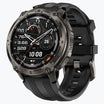
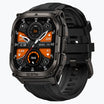


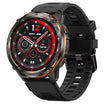
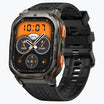
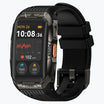
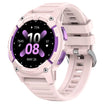
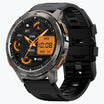
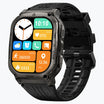
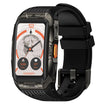
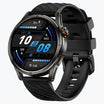
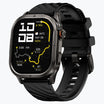
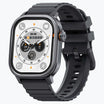
You likely bought a KOSPET watch for its military-grade durability and battery life. However, the default software experience is often generic and inefficient.
The watch comes with settings designed for a mass market user rather than for your specific needs.
You need to change these defaults immediately to get the actual value from the device. This guide focuses on the specific smartwatch personalization options available in the Apexmove app and on the hardware itself.
We will look at how to fix the interface and hardware to suit your daily usage.
Visual Smartwatch Personalization Options: Watch Faces and Themes
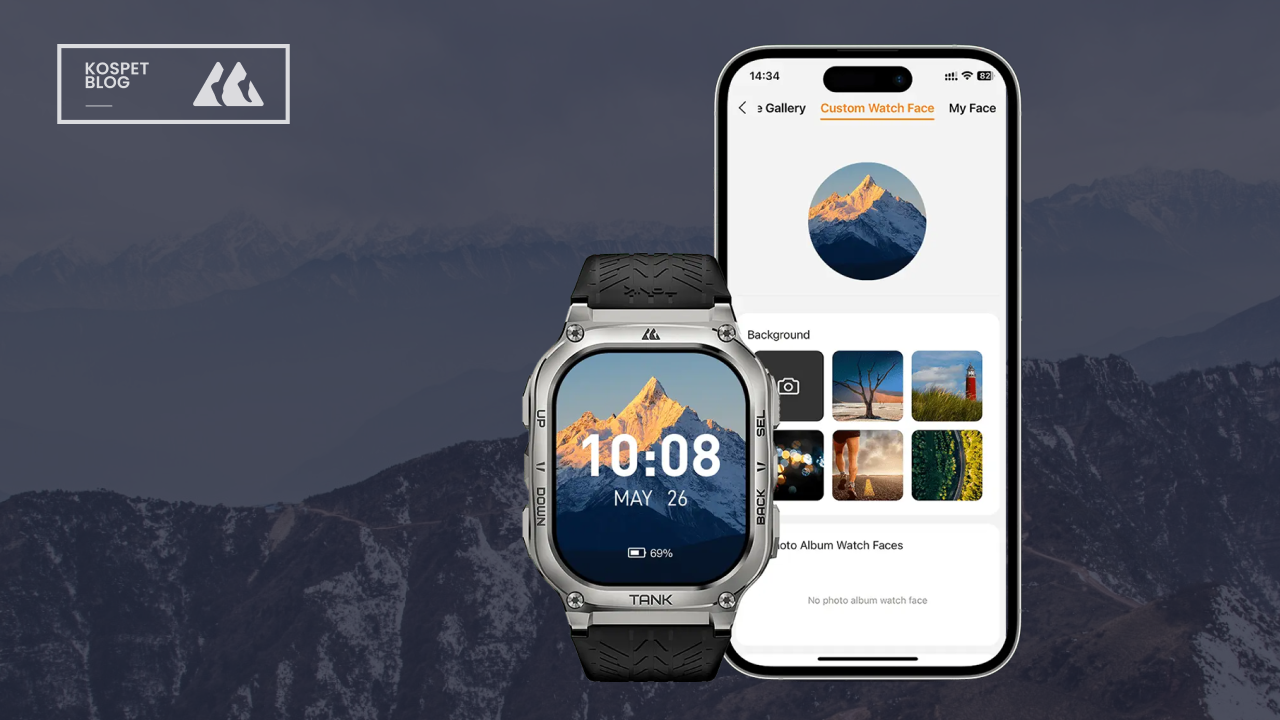
The default watch faces on the KOSPET smartwatch often prioritize flashy graphics over readability. This is a problem when you are outdoors or exercising.
You need a high contrast display that shows key metrics like heart rate and steps without clutter. Furthermore, using a colorful watch face on an AMOLED screen drains your battery significantly faster than a minimal one.
How to customize your watch face for efficiency:
- Open the Apexmove app on your phone.
- Navigate to the Device tab at the bottom.
- Select Watch Faces.
- Tap on the Custom Dial option.
- Upload a pure black image or a high contrast photo from your gallery.
- Select the position of the time widget to ensure it does not cover important parts of the image.
- Tap Sync Watch Face.
Using a custom background with a black dominant color turns off the pixels on an AMOLED screen.
This simple change in your smartwatch personalization options can extend your battery life by several hours per charge. It also prevents the pixel burn-in issues common with static, bright colored elements.
Pro Tip: Choose red or orange text colors for your custom watch face to preserve your night vision and reduce eye strain when checking the time in the dark.
Functional Smartwatch Personalization Options: Menus and Shortcuts
The physical buttons on outdoor smartwatches, like the TANK T3 and T4, are their strongest feature. However, the factory setting for the side buttons is often inefficient. You should not have to scroll through a menu to find a tool you use every day. You must remap the user-defined key to your most frequent action.
How to configure the shortcut button:
- Go to the Settings menu on your watch itself.
- Scroll down to Key Definition or Down Key Settings.
- Select a specific utility like Flashlight or a specific workout like Outdoor Running.
Now a single press turns on your light or starts your run immediately. You should also change the menu style.
The default Honeycomb view is difficult to navigate while walking because the icons are too small. Go to Settings and switch the View Mode to List View. This makes the text larger and the targets easier to hit when you are moving.
Pro Tip: If you work with gloves, map the side button to Answer Call so you can pick up the phone without needing to take off your gloves to use the touch screen.
Physical Smartwatch Personalization Options: Straps and Accessories
The silicone strap included in the box is durable, but it is a poor choice for 24-hour wear. Silicone traps sweat against the skin and causes irritation. More importantly, KOSPET watches are heavy.
A silicone strap often leaves gaps between the sensor and your wrist when you sweat. This results in inaccurate heart rate and blood oxygen readings during intense exercise.
You need to replace the stock strap with a nylon loop. KOSPET TANK series watches generally use a standard 22mm lug width, which makes them compatible with thousands of third-party straps.
A nylon loop allows for infinite micro adjustments. You can tighten it exactly as much as needed to keep the heavy watch chassis flush against your skin. This hardware change immediately improves the accuracy of your health data.
Pro Tip: Look for straps specifically labeled as Quick Release 22mm to ensure you can swap them out in seconds without needing any tools.
Managing Advanced Smartwatch Personalization Options via the App
Notifications are the biggest battery drain and the biggest distraction. The default setting in Apexmove often mirrors all phone notifications to your wrist. You do not need your watch to buzz for every marketing email. This constant vibration motor usage kills your battery.
How to filter notifications:
- Open Apexmove and tap the Device tab.
- Select Message Notifications.
- Toggle off the Switch All option.
- Manually toggle on only essential apps like SMS and Phone.
You must also configure your Do Not Disturb settings. A bright screen turning on when you roll over in bed disturbs your sleep cycle.
Go to the Device settings in Apexmove and set a strict DND schedule. This prevents the Raise to Wake gesture from activating the screen at night. These specific smartwatch personalization options ensure the device works for you instead of annoying you.
Read more: Best GPS Watch for Hiking with Reliable Maps and Long Battery Life
Pro Tip: Set the sedentary reminder to On but configure the Do Not Disturb Lunch Break period so the watch does not buzz at you while you are eating.
Conclusion
Your KOSPET watch is capable of much more than the factory settings allow. By changing the strap to nylon for better sensor accuracy and refining the smartwatch personalization options in the Apexmove app, you transform the device.
Do not settle for the default experience. Take a few minutes today to map your buttons and clean up your watch face.
FAQs
Can I use my own photos as a watch face on KOSPET?
Yes. Open the Apexmove app and navigate to the Device tab, then select Watch Faces. Choose the Custom Dial option to upload any photo from your phone gallery to use as your background.
What size strap do I need to personalize my KOSPET watch?
Most KOSPET TANK series watches use a standard 22mm quick-release mechanism. You can use any third-party 22mm strap made of nylon or leather, or metal to change the style of your device.
Can I customize what the side buttons do on the watch?
Yes. You can remap the bottom side button by going to Settings and selecting Key Definition on the watch itself. You can set it to instantly launch tools like the Flashlight or your preferred workout mode.



Leave a comment
All comments are moderated before being published.
This site is protected by hCaptcha and the hCaptcha Privacy Policy and Terms of Service apply.